CUBBIE PLAY / THE SETUP GUIDE

SMALL TOY.
BIG PLAYTIME.

Your little friend has a whole world to share. Let’s unlock its stories, music and games in the free Little Cubbie Playtime app.

Download on the App StoreGet it on Google Play
Or search Little Cubbie Playtime in your app store.
let’s bring your
Cubbie to life!
Little Cubbie bear in a blue hoodie
✦ About 5 minutes. One grown-up.
FIRST, THE LITTLE THINGS

Ready,
set… play.

A phone, your toy, and a grown-up.
Here’s what to have handy.

  • A phone with NFC, for setupRegistering the toy needs a tap (NFC). Most tablets and iPads don't have it, but they can play once the toy is registered.
  • Internet on the phoneWi-Fi or mobile data, for sign-up, stories, music and games. The tap itself doesn't need Wi-Fi or Bluetooth.
  • Your mobile numberWe text you a 6-digit code. No email needed.
  • Your toy, out of the boxKeep it close. You'll hold it next to the phone in step 5.
  • Thin phone case, or noneA thick case or a metal ring or grip on the back can block the tap.
SIX LITTLE STEPS. A WHOLE LOT OF PLAY.

Let’s get you started.

Already signed up? Skip to the tap →
01

Get the app.

Download Little Cubbie Playtime free from the App Store or Google Play. Open it.

Little Cubbie Playtime
Little Cubbie PlaytimeLook for the orange bear on blue.Free on iPhone and Android
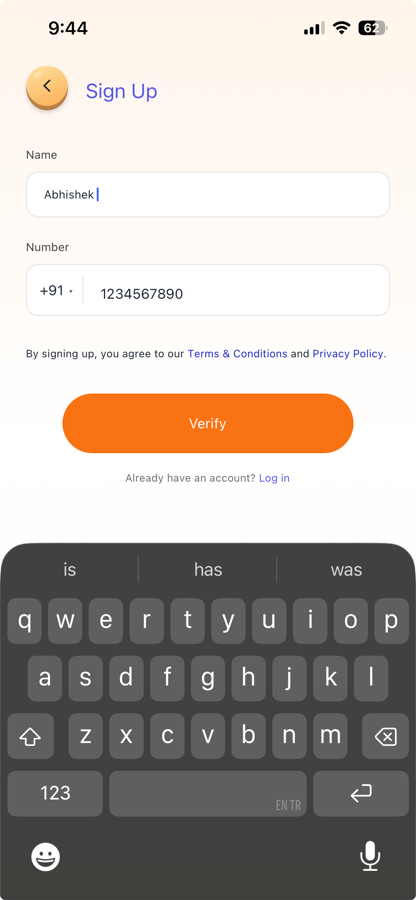
02grown-ups first!Sign-up screen asking for the parent's name and mobile number

Grown-up sign-up.

A parent creates the account, not the child.

  1. Enter your name and mobile number. India (+91) is set by default; tap the flag to pick another country.
  2. Type in the 6-digit code we send by text.
  3. Terms and Privacy sit behind a quick maths question to keep little fingers out of grown-up pages.
03their very own worldAvatar picker for your child's profile

Add your child.

  1. Pick an avatar for their profile picture. We never take a photo.
  2. Type their name.
  3. Add their birthday, or choose “Prefer not to say.”
More than one child? Add each of them now. Everyone gets their own profile.
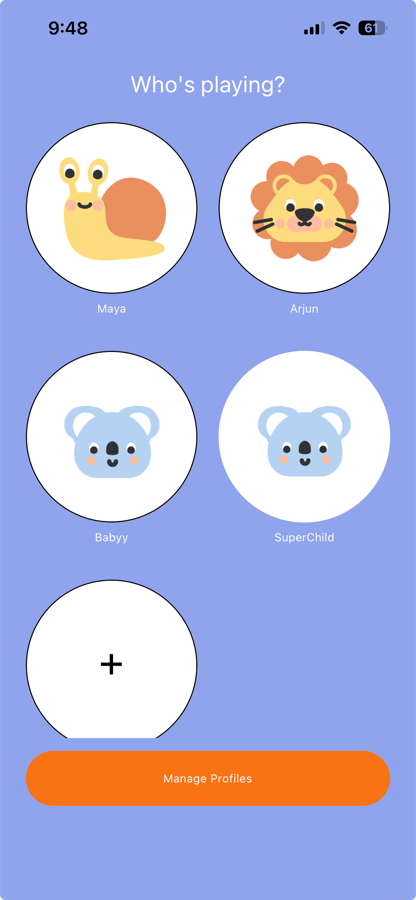
04who’s up for a story?Who's playing screen with child profiles

Choose who’s playing.

Tap the child the toy is for.

This little detail matters. Your toy is saved to the selected child. To share it with a brother or sister, select their profile and tap the toy again.
05 / HERE COMES THE MAGIC

A little tap.
A whole new world.

Turn your phone sideways. You’ll see five islands: Home, Devotional, Jungle, Adventure and Fantasy.
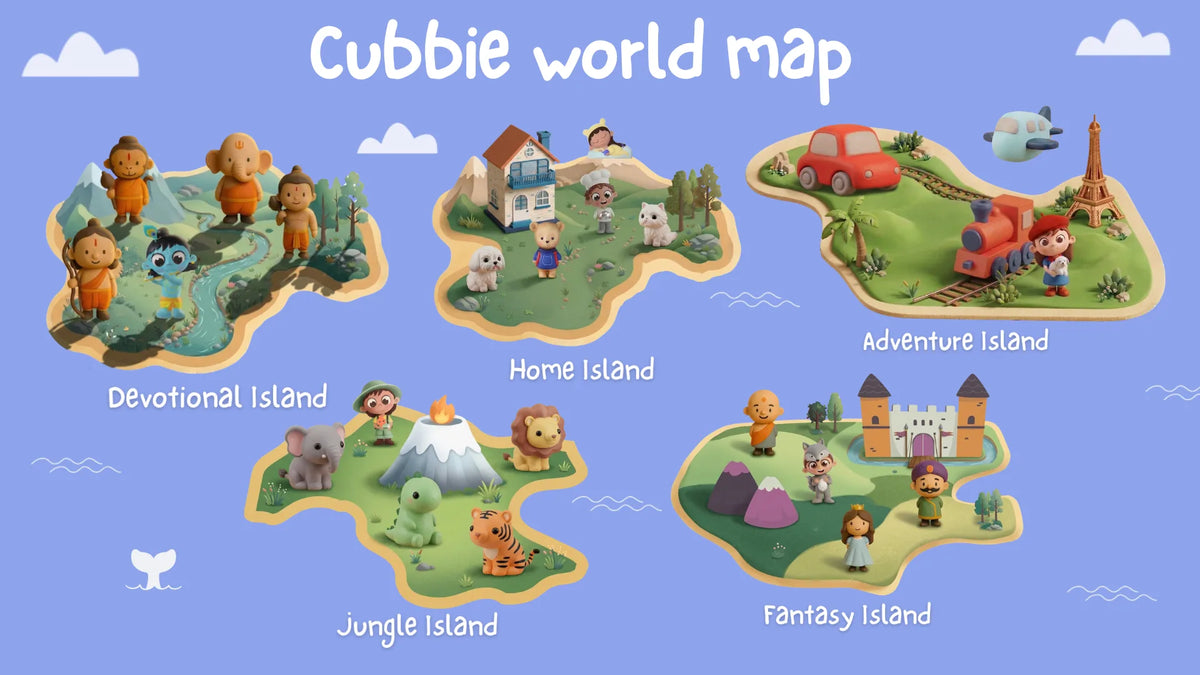
Cubbie world map with Home, Devotional, Jungle, Adventure and Fantasy islands
Find your toy’s island. Little Cubbie lives on Home Island. Can’t find your toy? →
A

Pick your character.

Tap your toy’s character on its island. Follow the screens. On Android, the app checks NFC and helps you switch it on.

B

Ready to Scan.

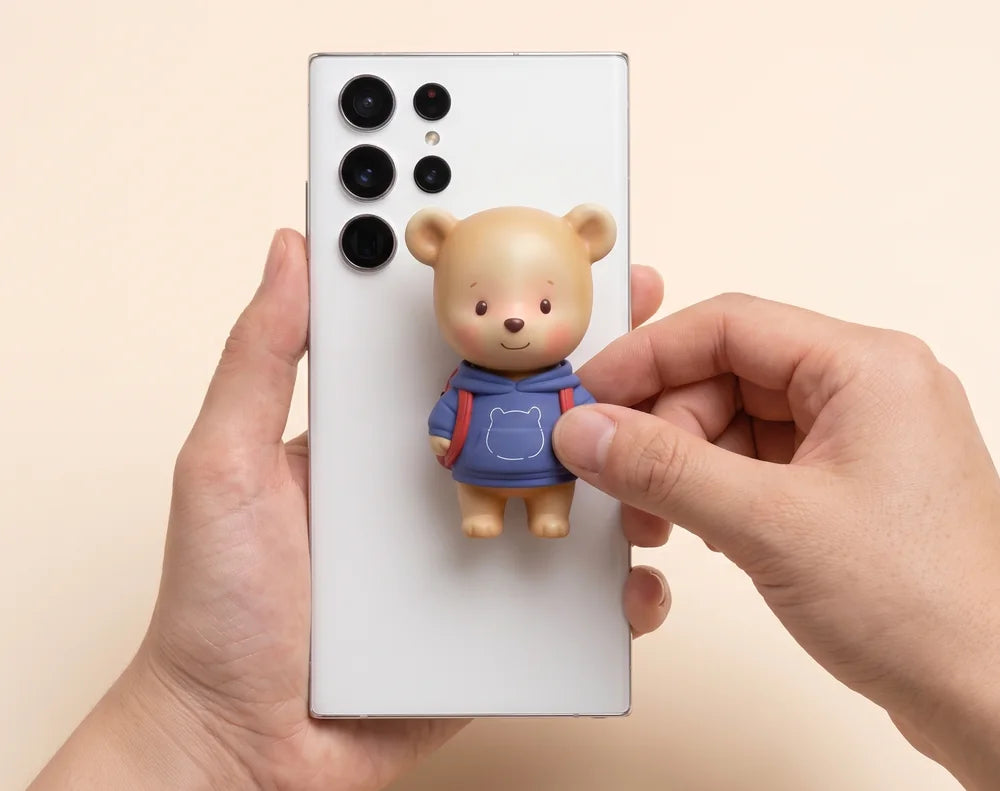
Tap Ready to Scan. Hold your toy flat against the back of your phone, not the screen.

C

Hold. And hello!

Stay still for a second or two. When you see “Toy registered!”, you’re ready to play.
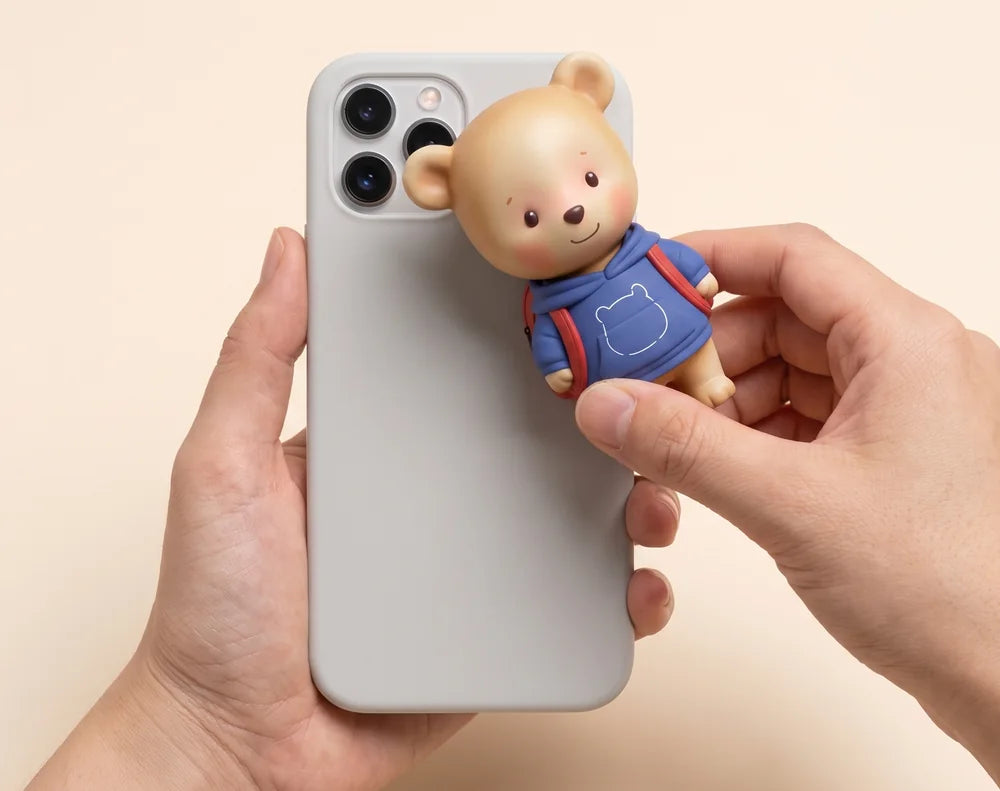
Hold the bear toy flat on the back of an iPhone near the camera
iPhoneNear the camera.Usually at the top of the back.
Hold the bear toy flat on the back of an Android phone around the middle
AndroidAround the middle.Your phone’s tap spot may vary.
Watch how: iPhone and Android
find that sweet spot

Every phone is a little different.

If holding still doesn’t work, slowly slide the toy around the back until it connects. You can try as many times as you need.

If the app gets stuck, close it fully and open it again. Once you find the tap spot, remember it for next time.

You can also tap Watch how in the app.

06 / OVER TO THE LITTLE ONES

And now?
Let them play.

Three buttons. A world of possibilities.
Stories, Music and Games are now open for your child.

Sound comes from your phone, so turn the volume up. Your toy has no speaker.
Stories
Music
Games
TABLETS & IPADS WELCOME

Tap once.
Take playtime anywhere.

Register on a phone with NFC. Then play on any phone, tablet or iPad signed in to the same account — with or without NFC.

One account. Up to 4 devices at once.
01

Register on an NFC phone.

Sign in and tap every toy you own.

02

Sign in on the kids’ devices.

Use the same mobile number on a tablet, iPad or another phone.

03

Hand it over. Let them play.

The toys are registered, so there’s no need to tap again on those devices.

A LITTLE HELP WITH THE TAP

Not quite
connecting?

Try these little fixes. Most taps just need the right spot.

Ask us for a hand →
Back, not front.
Hold the toy on the back of the phone, never on the screen.
Find your phone's spot.
iPhone: usually near the camera. Android: usually around the middle. If holding still doesn't work, slide the toy slowly over the back until it connects.
Take off a thick case.
Also remove metal rings, grips or card wallets on the back.
Android: turn on NFC.
Open Settings and search "NFC". Some phones call it "Tap & pay" or "Connection preferences". iPhones have no NFC switch; it's always ready.
"This device can't tap-connect"
This phone or tablet has no NFC. Register the toy on a phone that has NFC, using the same account. After that, this device can still be used to play.
"Incorrect Toy"
The toy you held isn't the character you picked on the map. Go back and pick your toy's own character.
"Already Registered!"
This toy is already saved for the selected child. Just tap Play.
"This toy is already linked to another account"
Someone already registered this toy on a different account. Each toy joins one account only. Log in to that account, or contact us.
"Select a child first"
Nobody is chosen. Go back to "Who's playing" and pick your child.
Still stuck?
Close the app fully, open it again and retry. Still no luck? Try another phone with NFC, or contact us.
GOOD QUESTIONS. SIMPLE ANSWERS.

The little details.

Getting started

Is the app free?

Yes. Little Cubbie Playtime is free to download, and your toy unlocks its stories, music and games. There are no in-app purchases right now. Extra premium content may be added later.

Which phones work?

Most iPhones (iPhone 7 and newer) and most Android phones with NFC. Most tablets and iPads can't do the tap.

Can I use a tablet or iPad?

Yes, for playing. Registering the toy needs a phone with NFC. Once it's registered, sign in with the same mobile number on a tablet or iPad and play there. No tap needed. How it works

Why do you need my mobile number?

To send a 6-digit code so only you can sign in. We don't ask for email.

I didn't get the 6-digit code.

Check the number and country code, wait a minute, then ask for a new code. Make sure the phone has signal.

Can my child set this up alone?

A grown-up should do sign-up. Grown-up pages (Terms, Privacy, Help) sit behind a quick maths question.

The toy and the tap

I can't find my toy on the map.

Each island shows the characters that live there. Look for your character and tap it. Little Cubbie is on Home Island. Tenali Raman and Birbal are on Fantasy Island. If your toy says "Coming soon", it can't be registered yet.

Does the tap need Wi-Fi or Bluetooth?

No. The tap uses NFC, the same thing as tap-to-pay. Stories, music and games do need internet.

Does the toy need charging or batteries?

No. There's nothing to charge and no speaker in the toy. Sound plays from the phone.

Do I tap the toy every time we play?

No. Tap once to register. After that, Stories, Music and Games stay open for that child.

Do I still need the toy after setup?

Yes, please keep it. When new stories, music or games arrive in an update, you may need to tap the toy again to add them to your account. Without the toy, new updates can't be unlocked.

How do I find the tap spot on my phone?

On iPhone it's usually near the camera. On Android it's usually around the middle of the back. If holding still doesn't work, slide the toy slowly over the back of the phone until it connects. Once you've found it, it'll work first time from then on.

My other toy shows "Coming soon."

That character isn't ready yet. You can't register it until it launches.

Can I register a toy I got as a gift or second-hand?

Yes, if it hasn't been registered before. Each toy joins one account only. If it's already linked to someone else's account, contact us.

Children and family

I have two children. Do they share the toy?

The toy is saved to the child who was selected when you tapped it. To give a second child access, select that child and tap the same toy again.

How do I add another child?

Go to "Who's playing" and add a new profile: avatar, name, then birthday or "Prefer not to say."

Do you take photos of my child?

No. Your child picks a ready-made avatar.

Playing

No sound.

Turn up the phone's volume and check silent mode. The toy has no speaker.

Can we play offline?

No. Stories, music and games need Wi-Fi or mobile data.

Why does the screen turn sideways?

Sign-up screens are upright. The map, stories, music and games play sideways for a bigger picture.

The Back button doesn't leave a story or game.

That's on purpose, so small hands don't exit by accident. Use the close button on screen.

Account and devices

Can I use the app on more than one phone?

Yes, up to 4 devices signed in at the same time, including tablets and iPads. Sign in with the same mobile number. Only the device you register toys on needs NFC.

It says "Device limit reached."

Log out on a phone you no longer use, then sign in again on the new one.

If I log out, do I lose my child or my toy?

No. Log back in with the same mobile number and everything is still there.

I got a new phone.

Install the app and sign in with the same mobile number. Your children and toys come with you. No need to tap again.

WE’RE RIGHT HERE

A little help.
From real people.

Tell us your phone model, which toy you have, and what the screen says. A screenshot helps, too.

Email our team →
happy playing!Little Cubbie bear in a blue hoodie
Download on the App StoreGet it on Google Play